Getting started
Quick start
Markwork is a Markdown workspace for humans and AI agents on the Linux desktop. You and the agent work in the same folder: the agent browses your notes, plans, and task boards, then proposes changes that are only written after you approve the diff.
Install
Markwork is run by GJS, not Node.js. Node.js is only needed once, to build the code. On Ubuntu or Debian:
# required: GJS, GTK 4, libadwaita, and GtkSourceView 5
sudo apt install gjs gir1.2-gtk-4.0 gir1.2-adw-1 gir1.2-gtksource-5

# the AI agent: libsoup 3 and (optionally) a keyring for the API key
sudo apt install gir1.2-soup-3.0 gir1.2-secret-1

# optional: Mermaid and DBML diagrams
sudo apt install gir1.2-webkit-6.0
Without libsoup only the agent does not work. Without libsecret, the API key is stored in a file with 0600 permissions. Without WebKitGTK, diagrams show an error message and the rest keeps running.
Get the code and run it
Node.js 20.19+ or 22.12+ is needed for the build.
git clone https://github.com/EkaPutCom/markwork.git
cd markwork
npm install
npm start
After it is built, the app can be opened directly with a file or a folder:
gjs -m dist/markwork.js ~/notes            # open a work folder
gjs -m dist/markwork.js plan.md            # open one file
Install into the application menu (optional)
npm start runs Markwork straight from the dist/ folder. To make it appear in the application menu with its icon and to open Markdown files from the file manager, install it with Meson after the build:
npm run build
meson setup _build --prefix=/usr
sudo meson install -C _build
To use the latest libadwaita without depending on the distro version, build it as a Flatpak with the GNOME 50 runtime:
flatpak-builder --user --install --force-clean _flatpak build-aux/flatpak/com.ekaput.Markwork.json
Installing through Meson and Flatpak has not been tested yet (see Limitations).
Connect the agent
- Open the Assistant panel with Ctrl+Shift+A or the bubble button in the header bar.
- Click the gear icon, then enter your DeepSeek API key. The key is stored in the system keyring, not in the app settings. The
DEEPSEEK_API_KEYenvironment variable is also recognized. - Open a work folder (Ctrl+Shift+O) so the agent can browse other files and propose changes.
Try a first flow
Markwork follows one flow through the day, all in plain Markdown files in your work folder:
- Home. Start on Home: what to continue, today's journal, running agents, due dates, and the unprocessed inbox.
- Inbox. Capture ideas and quick notes in the inbox, then turn the worthwhile ones into cards.
- Journal. Write short notes in the journal; Markwork adds the day's activity for you.
- Kanban. Plan the work on a board. Due dates show up on Home.
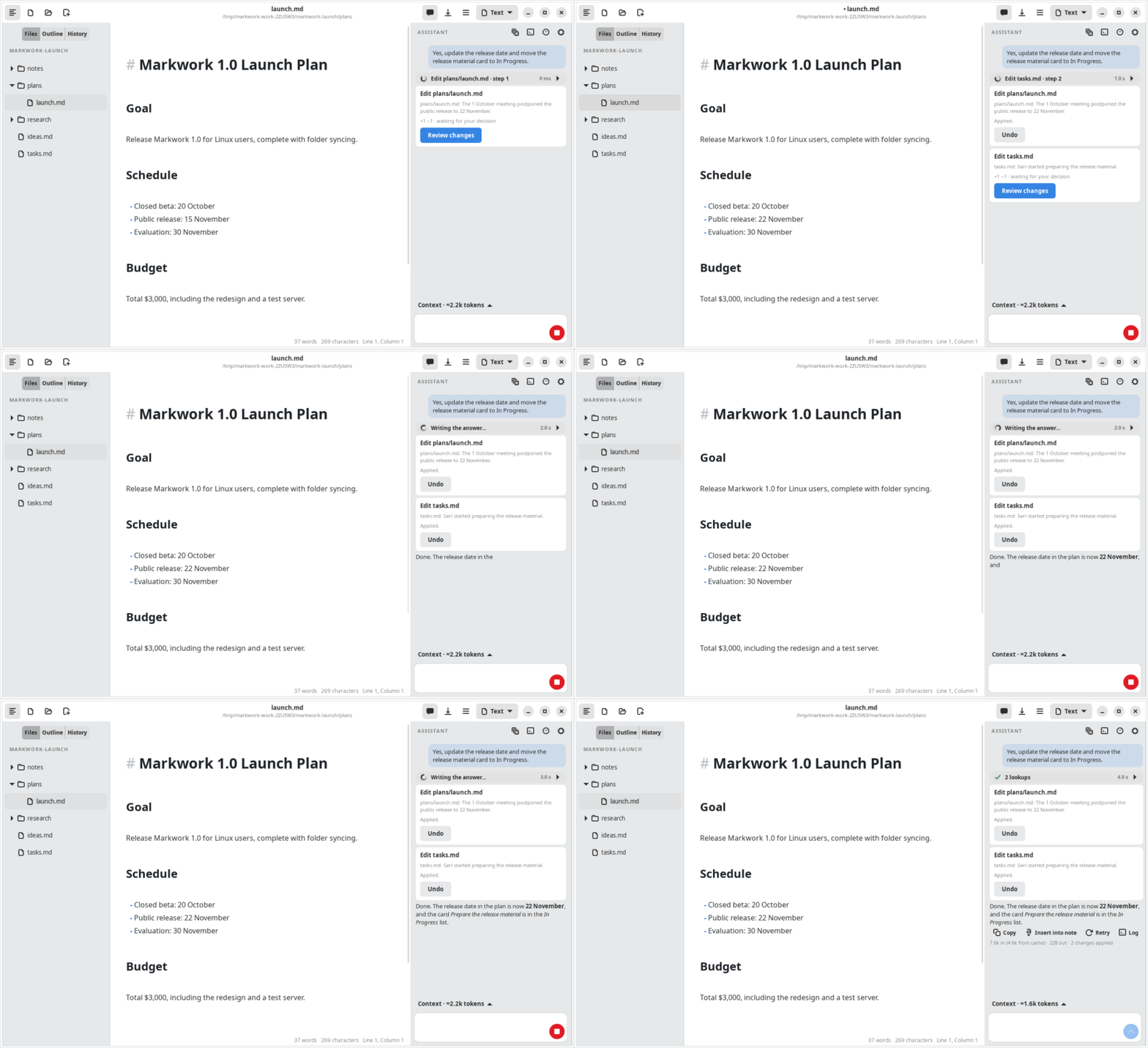
- Agent. Ask in the Assistant panel, for example “Update the release date and move the release material card to In Progress.” The agent proposes the changes, the review window shows the diff, and you press Apply or Reject.